Console settings
Settings is where your own preferences live: how the console looks, what language your reports come back in, and the account details we hold for you. Open it from the gear icon in the left rail, or go straight to /settings.
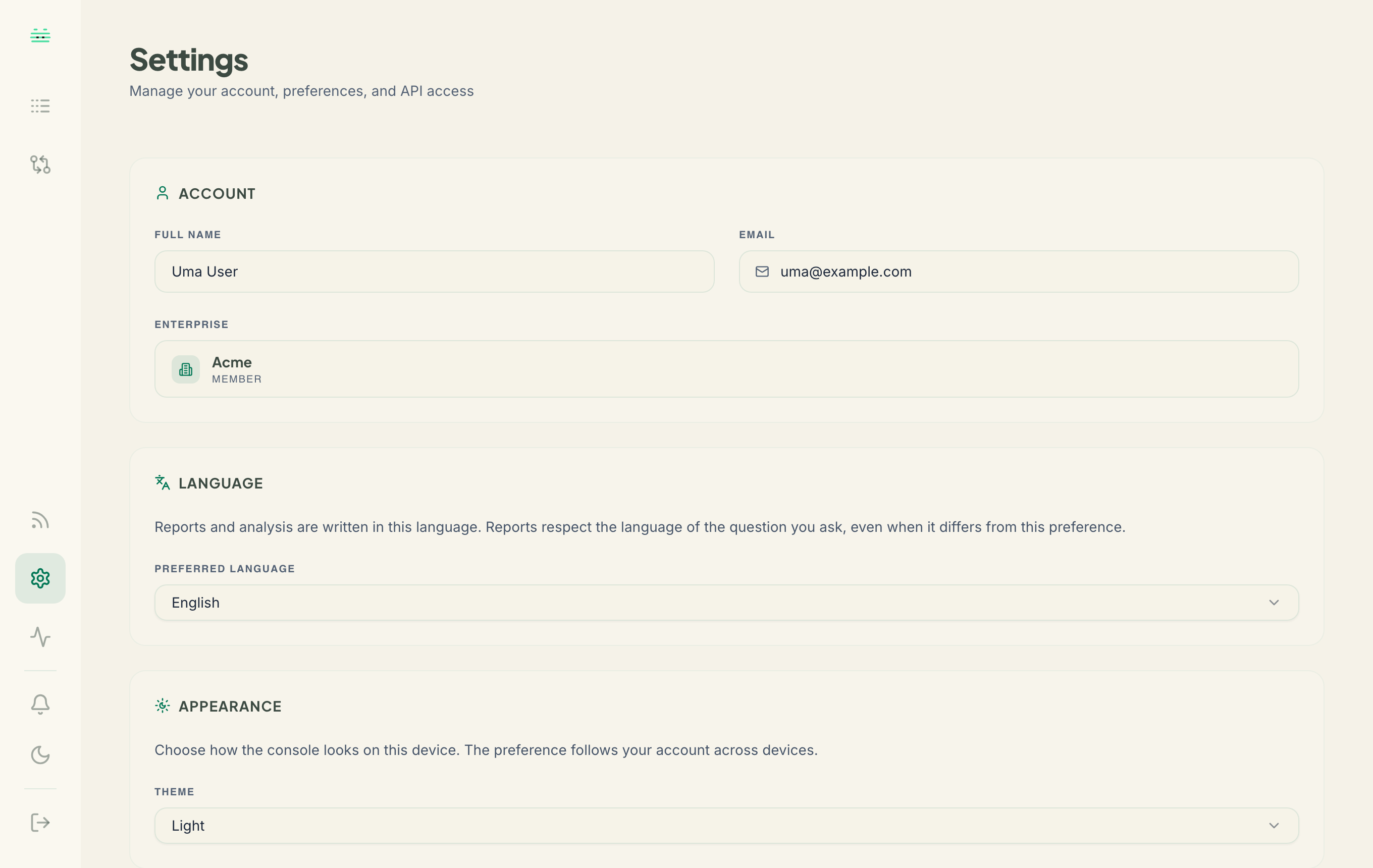
Account
Your name, email, and the organization you belong to, exactly as we hold them. They are shown here rather than edited here. If something is wrong, or you need to move to a different organization, ask your administrator or contact us.
If you are in an enterprise you also see its name and your role in it. What each role can do is in Teams, enterprise & SSO.
Language
Reports and analysis are written in the language you pick here. English, Korean and Chinese are available.
One thing worth knowing: asking a question in Korean or Chinese returns that answer in the language you asked, whatever your preference says. You do not have to change this setting to ask one question in another language.
It does not work the other way round. Asking in English does not override your preference, so if you have set Korean, an English question still comes back in Korean.
Appearance
The console starts dark for every account. Light is opt-in, and you can switch whenever you like.
There are three ways to switch:
- The left rail: the sun or moon icon near the bottom, on a desktop screen.
- The bottom bar: the same icon on a phone, where the left rail is hidden.
- This page: the Theme dropdown, on any screen size.
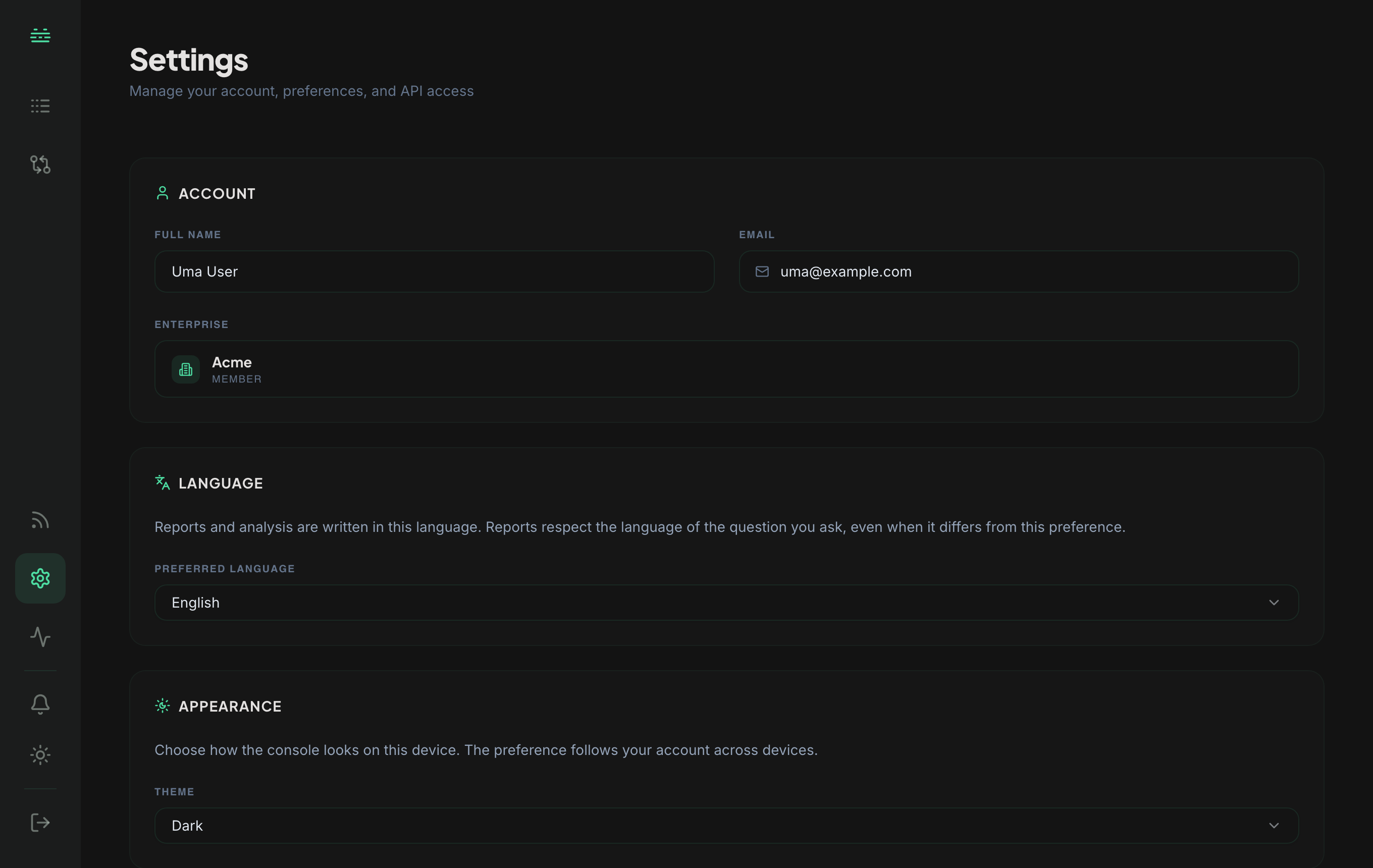
Your choice is saved to your account rather than to the browser you made it in, so signing in on a second machine gives you the same theme without setting it again. It is applied before the page draws, so you will not see a flash of the other theme on the way in.
The whole console moves, not just the frame around it: dashboards, charts, the log viewer, investigations and uploads. Printed and exported reports are the one exception, and they stay on a light page in either theme. A PDF is a document, and a document reads better on white.
API keys
Your API key is created, shown once, and revoked from this page. Generating one needs API access on your account, so if you do not see the option, that is why.
Everything about using the key, including the header scheme and what happens when you rotate one, is in Authentication.
Alerts
What you are alerted about, and where those alerts are delivered, are set under Activity, on the Alert preferences page. You can be alerted in the console, by email, or to a webhook endpoint of your own. Browser notifications are available too where your workspace has them enabled.
If you are implementing a webhook receiver, the payload shape and the signature you should verify are in Webhooks.
Next
- Plans & pricing: what your account includes.
- Teams, enterprise & SSO: roles, domains and single sign-on.