Deep Research
Deep Research doesn’t search your logs. It investigates them. Ask a question in plain English; the agent plans a strategy, runs multi-step searches, forms and tests hypotheses, and traces causal chains across kernel, framework, drivers, and app layers. The output is a citation-backed report with root cause, evidence, and actionable recommendations. Most investigations complete in a few minutes.
Before you start: make sure your file is in an accepted format. See Supported file types.
Watch a real investigation
What Deep Research does
Deep Research works through a problem in steps:
- Plans an investigation strategy: breaks your question down, runs multi-step searches, and refines its line of inquiry as evidence accumulates.
- Parallel agents: spawns multiple agents that pursue different angles of your question concurrently, each chasing its own hypothesis. Their findings are consolidated into a single report, which is faster than sequential search and less likely to miss issues that one line of inquiry would skip past.
- Hypothesis-driven: forms theories from what it finds, tests them, and pivots when a lead is a dead end.
- Cross-layer correlation: traces causal chains across kernel, framework, drivers, and app layers, and across the time windows where events unfold.
- External lookups: pulls in CVE entries, vendor documentation, and other references when they’re relevant to the investigation.
- Citation-backed reports: every claim links to the source log line or external reference, so you can verify the reasoning.
- Multi-source scope: bugreport sections, logcat, and dmesg in a single investigation. On platforms with telecom or automotive logs, those are included too.
- Follow-ups with memory: drill deeper into any finding; the agent retains the full investigation context, so each follow-up builds on what’s already been discovered.
Deep Research vs Quick Search
| Deep Research | Quick Search | |
|---|---|---|
| Best for | Root-cause analysis, cross-layer issues, the unknown unknowns | Triage, known-symptom searches |
| Method | Multi-step agent with hypothesis testing | Single-pass search |
| Time | A few minutes | Under 5 seconds |
| Output | Root cause, causal chain, evidence, actionable recommendations | Direct answer with cited log lines |
| Use when | “Why did this device reboot during video playback?” | “Show me all camera HAL errors” |
If you already know exactly what to grep for, Quick Search is faster. If you need the system to figure out what to look for (most of the hard cases), use Deep Research.
Running an investigation
- Upload a log file at console.logcat.ai: bugreport zip, logcat, or dmesg. Wait for analysis to finish.
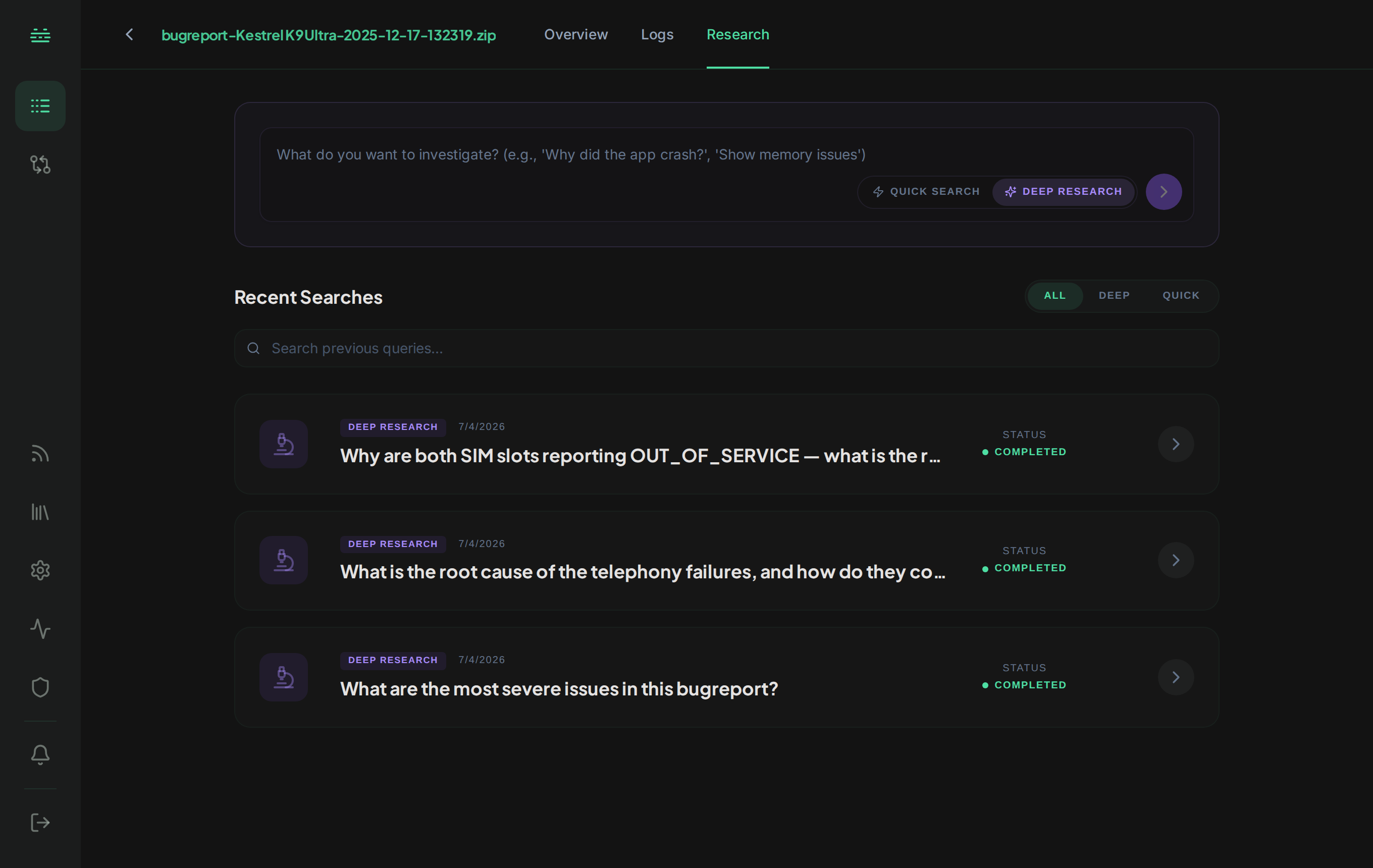
- Open the Research tab from the left navigation. Deep Research is the default mode.
- Switch to Deep Research using the mode toggle at the top of the search input.
- Type your question in natural language. Be specific about the system area, time window, or symptom you care about.
- Watch the investigation unfold: the agent streams its plan and each step in real time, including the searches it runs and what it finds.
- Review the report: once complete, you’ll see a synthesized answer with inline citations, plus the full investigation trace if you want to audit the reasoning.
Writing good prompts
Deep Research handles open-ended questions, but grounded prompts produce better reports. Anchor your question to a symptom, subsystem, or time window:
- “Why did this device reboot during video playback?”: concrete symptom anchored to a triggering condition; the agent will trace events across kernel, framework, and app layers.
- “Find the root cause of battery drain”: open-ended but grounded in a known problem; the agent forms hypotheses (wakelocks, runaway services, modem activity) and tests each.
- “Investigate the security posture of the device”: broad audit; returns SELinux denials, permission anomalies, and security-relevant events.
- “Why did com.example.app keep getting killed after 14:30?”: focused on a single app and time window.
- “Are any drivers failing to initialize, and is it specific to this kernel build?”: pulls dmesg, device info, and external references.
Less effective prompts:
- “What’s wrong?”: too broad, no anchor.
- “Fix this bug.”: Deep Research investigates, it doesn’t patch code.
Reading the report
Each investigation produces a structured report:
- Root cause: the agent’s primary finding, with inline citations.
- Causal chain: how events connected across layers and time to produce the symptom.
- Evidence: the log lines that support each claim. Click any citation to jump to the source line in the embedded viewer, or follow external links to CVEs and docs.
- Recommendations: actionable next steps based on the findings.
- Investigation steps: the agent’s full plan and every search it ran, for auditing the reasoning.
- Follow-ups: ask deeper questions on any finding; the agent retains the full investigation context, so each follow-up builds on what’s already been discovered rather than starting from zero.
- Feedback: thumbs-up or thumbs-down on the report.
Sharing and history
- Share: every report has a public link that lets teammates view the full investigation, including citations, without signing in or creating an account.
- Export: download as PDF for incident write-ups or attach to tickets.
- History: past Deep Research runs are saved per-file. The Research tab filters between Deep Research and Quick Search history, so you can revisit a prior investigation rather than re-running it.