Quick Search
Quick Search returns a direct answer from your log file in seconds. Ask a question in plain English; the system finds and surfaces the most relevant log lines with a short summary and inline citations. Use it for triage, known-symptom lookups, and rapid spot-checks, when you already know what you’re looking for and need to find it fast.
Before you start: make sure your file is in an accepted format. See Supported file types.
Overview video
What Quick Search does
Quick Search is tuned for speed:
- Single-pass search: semantic search returns the most relevant lines in one shot, no multi-step reasoning or hypothesis testing.
- Natural-language queries: ask the way you’d ask a colleague, e.g. “Show memory warnings”, “Find camera HAL errors”, “Why did MyApp crash at 14:32?”.
- Short summary: a one-line synthesis of what the matching lines show, so you don’t have to read every result to get the gist.
- Multi-source scope: bugreport sections, logcat, and dmesg are all searched in a single query. On platforms with telecom or automotive logs, those are included too.
- Fast: typical responses in under five seconds.
Quick Search vs Deep Research
| Quick Search | Deep Research | |
|---|---|---|
| Best for | Triage, known-symptom searches | Root-cause analysis, cross-layer issues, the unknown unknowns |
| Method | Single-pass search | Multi-step agent with hypothesis testing |
| Time | Under 5 seconds | A few minutes |
| Output | Direct answer with cited log lines | Root cause, causal chain, evidence, actionable recommendations |
| Use when | “Show me all camera HAL errors” | “Why did this device reboot during video playback?” |
If you already know exactly what to grep for, Quick Search is the right tool. If you need the system to figure out what to look for and trace causes across subsystems, use Deep Research.
Running a search
- Upload a log file at console.logcat.ai: bugreport zip, logcat, or dmesg. Wait for analysis to finish.
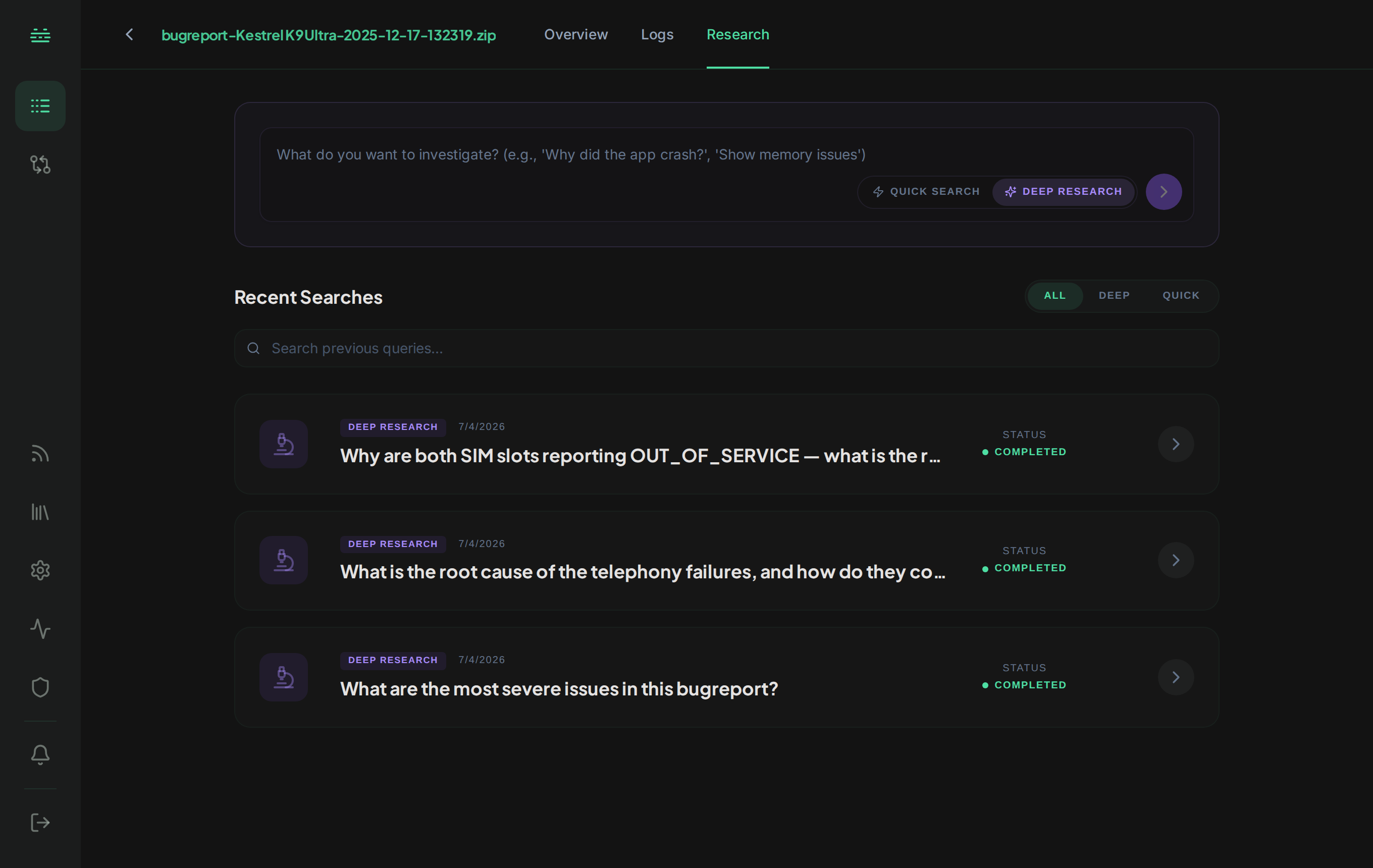
- Open the Research tab from the left navigation.
- Switch to Quick Search using the mode toggle at the top of the search input.
- Type your question in natural language. Reference tags, subsystems, time windows, or specific symptoms when you know them. The more concrete the query, the tighter the results.
- Review the results: a short summary plus the matching log lines with citations. Click any citation to jump to the source line in the embedded viewer.
Writing good queries
Quick Search works best when you can name the symptom, tag, or time window. The more specific the query, the tighter the result set:
- “Show all ANRs in com.example.app”: focused on a single app and a known event type.
- “Find camera HAL errors after 14:00”: anchored to a subsystem and a time window.
- “List dmesg warnings about thermal throttling”: explicit source and topic.
- “What killed MyService?”: pinpoint question that maps cleanly to log lines.
- “SELinux denials for system_server”: concrete tag, narrow scope.
Less effective queries:
- “Why is this device slow?”: open-ended root-cause question; use Deep Research.
- “Investigate the boot sequence”: broad audit across layers; use Deep Research.
Reading the results
Each search returns:
- Summary: a short synthesis of what the matching lines show.
- Feedback: thumbs-up or thumbs-down on the result.
If the answer doesn’t appear or the result feels thin, try Deep Research. It can plan multi-step searches, correlate across subsystems, and form hypotheses about what’s actually going on.
Sharing and history
- Share: every search has a public link that lets teammates view the results, including citations, without signing in or creating an account.
- Export: download as PDF for incident write-ups or attach to tickets.
- History: past Quick Search runs are saved per-file. The Research tab filters between Quick Search and Deep Research history, so you can revisit a prior search rather than re-running it.